English
English
Appearance

Alerts are delivered to the channels you verify here. WallaWhats supports two destinations: a WhatsApp number (one-tap code, no SMS fees, no extra app to install) and an email address (six-digit code via standard email). You can verify one or several — every verified channel receives every alert.
From the left sidebar, click Channels.
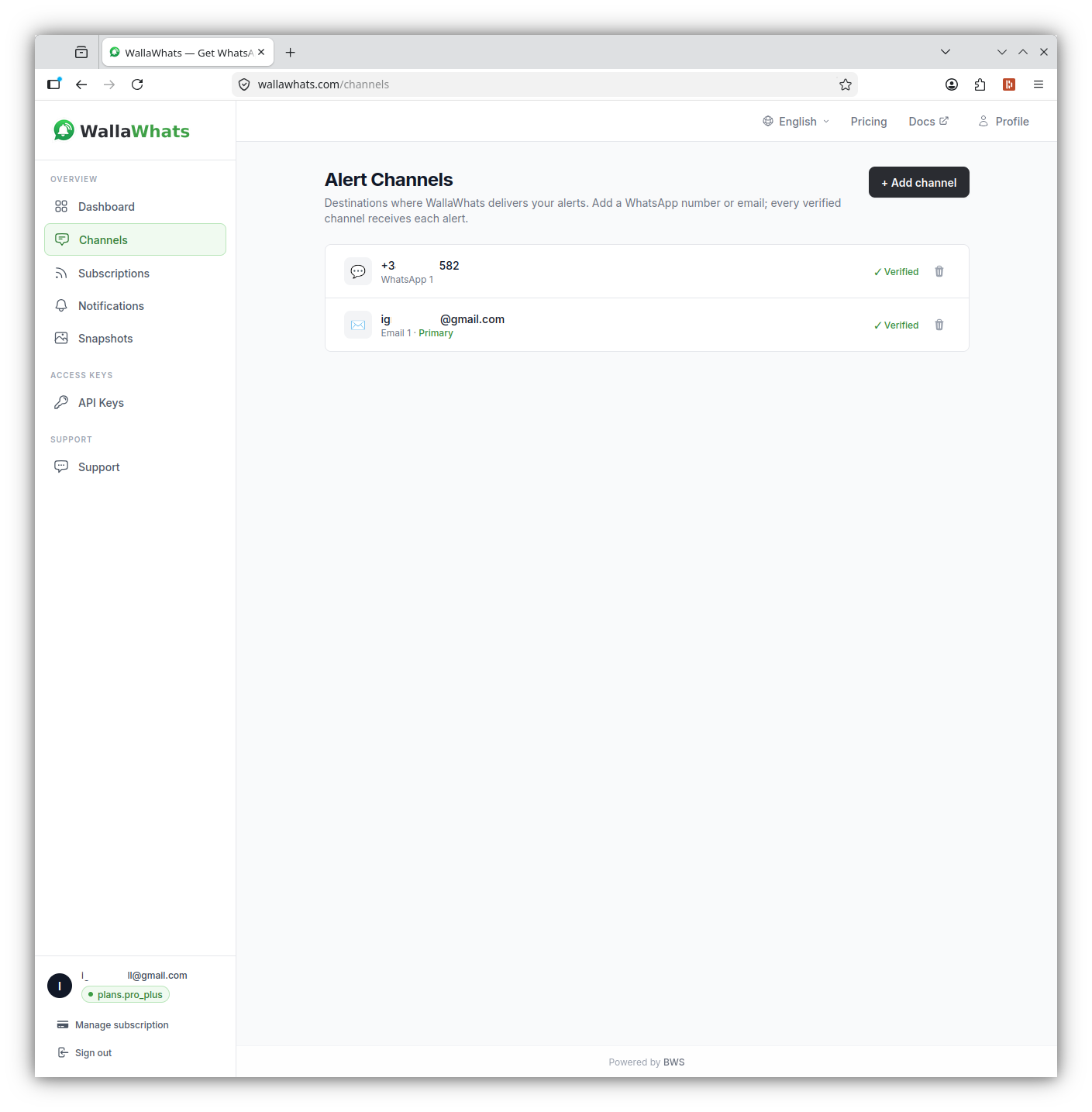
You'll see a small form with two channel-type options.
+ and the country code. Examples: +34612345678 (Spain)+14155552671 (US)+447911123456 (UK)Country code matters
Make sure to include the + and the country code. Numbers entered without a country code will fail.
you@example.com).WhatsApp — within a few seconds, you'll receive a message from WallaWhats containing a 6-digit verification code:
WallaWhats
123456 is your verification code. For your security, do not share this code.
[Copy code]
Tap Copy code — WhatsApp copies the digits to your clipboard automatically.
Email — check your inbox for a message subject "Your WallaWhats verification code". The 6-digit code is in the body.
Back in the browser, enter the 6-digit code into the verification field and click Verify.
Your channel appears in the list with a green Verified badge. From this point on, any tweet alert is fanned out to every verified channel — no extra configuration needed.
You can mix and match: e.g. one WhatsApp number for instant alerts on the go and one email for an archived record. Plan limits cap how many of each type you can verify (see Manage your plan).
I didn't receive the WhatsApp code.
I didn't receive the email code.
The code expired.
I need to remove a channel.
Your alert channels are verified — now you can start monitoring X accounts.