English
English
Appearance

Add the X (Twitter) accounts you want to track. Every time one of them publishes a post, you'll get a WhatsApp alert within seconds.
From the left sidebar, click Subscriptions. You'll see the list of accounts you're currently monitoring (empty on a new account).
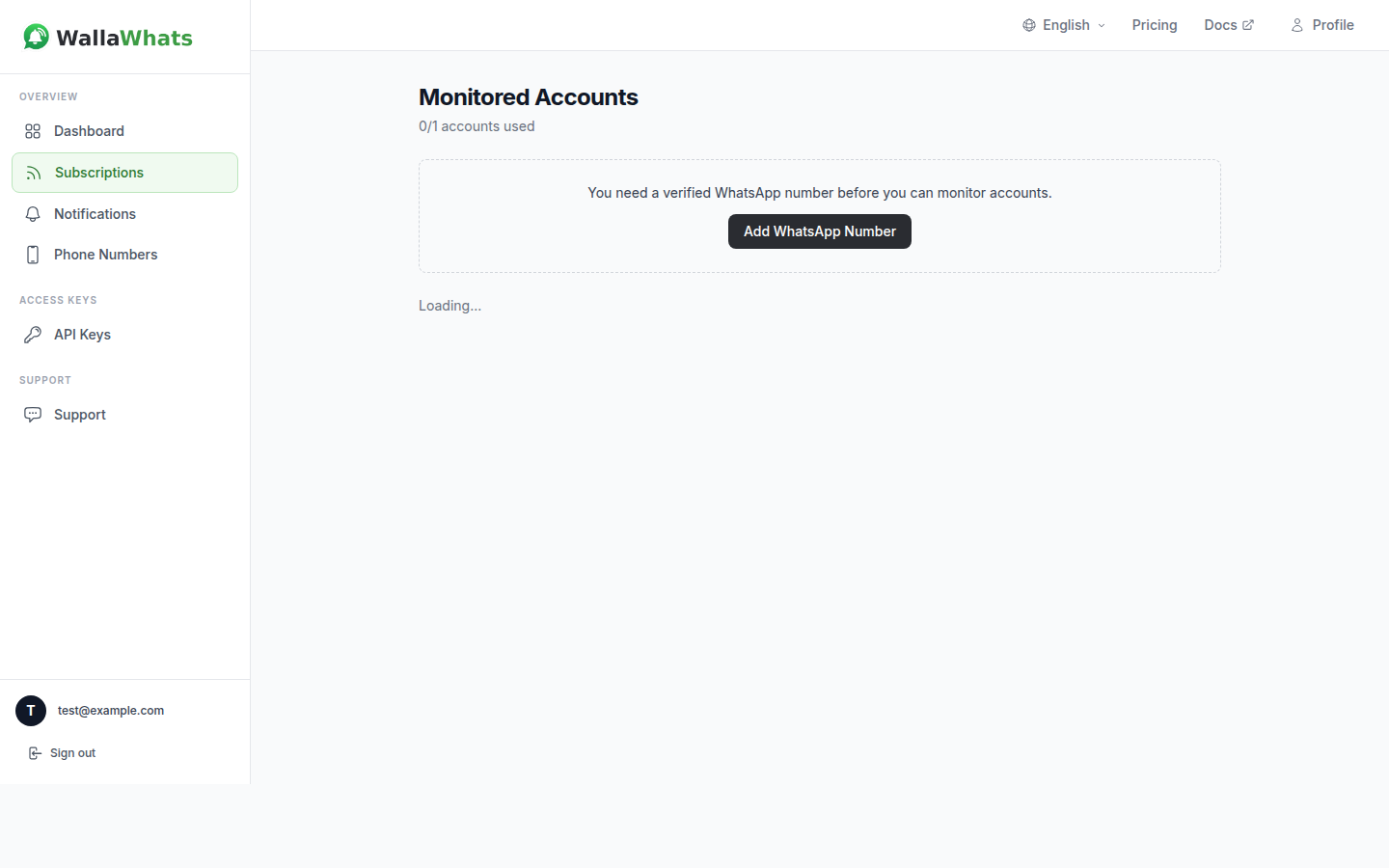
Fill in the form at the top of the page:
@. Examples: elonmusk@BBCBreakingtaylorswift13Handle format
X handles are case-insensitive and allow letters, digits, and underscores. Up to 15 characters.
If the handle exists, it appears in your list within a second. You'll see:
@handleFrom this moment, any new post from that account triggers an alert to your WhatsApp.
Each tier has a maximum number of accounts you can monitor at the same time:
| Plan | Max accounts |
|---|---|
| Free | 1 |
| Pro | 1 |
| Pro+ | 2 |
| Business | 5 |
| Enterprise | 50 |
If you reach your limit, the Add button is disabled until you either remove an account or upgrade. A counter at the top shows X/Y accounts used.
Click Remove next to the account. You'll stop receiving alerts immediately. You can re-add it later at any time.
Toggle the Active switch off. The subscription stays in your list but no alerts are sent. Toggle it back on when you want to resume.
You can't edit the destination phone directly — remove the subscription and re-add it with the new phone selected.
"X user not found"
@."Subscription limit reached"
"You need a verified WhatsApp number first"
Subscriptions are set up. Now see what alerts look like on your phone.