Track WhatsApp Delivery Status: Read Receipts Explained
See exactly when each WhatsApp or email alert was delivered, read, or failed, with per-channel status and read receipts for full delivery tracking.
 by Nacho Coll
Nacho founded WallaWhats so you get the alerts that matter without depending on X's algorithm to surface them — pick the accounts you care about and get a WhatsApp for every post the moment it goes live, in order, nothing throttled or buried.
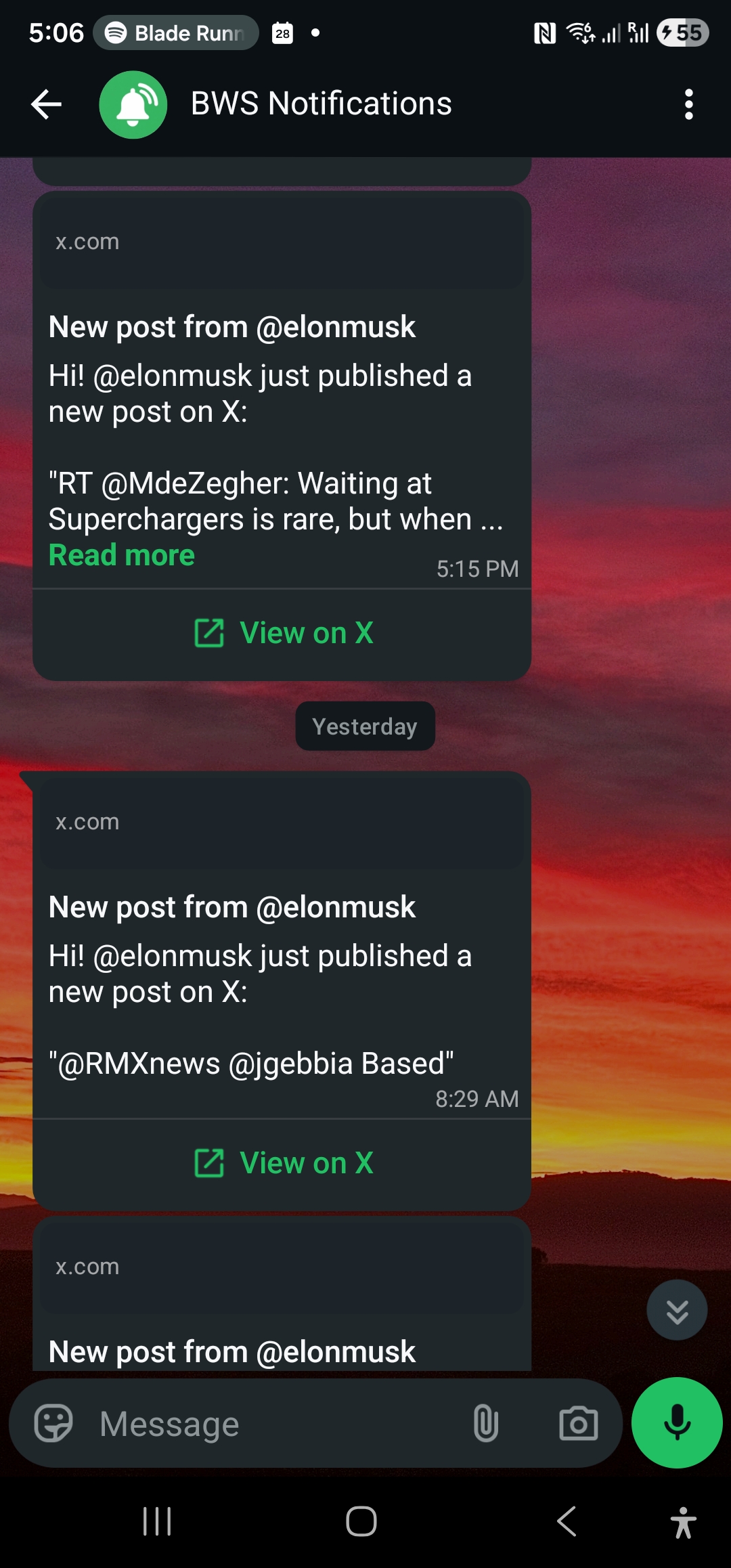
You set up an alert for a competitor’s product launch, a source’s breaking post, or a portfolio founder’s funding announcement. Ten minutes later you’re wondering: did it actually arrive? Did WhatsApp deliver it, or is it stuck somewhere between WallaWhats and your phone? For anyone using real-time alerts to make time-sensitive decisions, “it probably sent” isn’t good enough. You need a record.
That’s what the WALLAWHATS notifications history is for. Every alert — whether it lands on WhatsApp or email — gets its own row with a status that updates as the message moves through delivery. This article walks through what each status means, where read receipts come from, and how to use the history for auditing, debugging, and building confidence in your alert pipeline.
One Row Per Channel, Not Per Tweet
The first thing to understand about the notifications table is its shape: it’s one row per (post × channel), not one row per post. If you have both WhatsApp and email enabled and a monitored account posts once, you’ll see two rows in your history — one tracking the WhatsApp delivery, one tracking the email delivery. Each can be in a different state at any given moment, because delivery to WhatsApp and delivery to email are handled independently.
This matters when you’re troubleshooting. If a WhatsApp alert never arrived but the matching email did, the per-channel breakdown tells you immediately that the issue is on the WhatsApp delivery leg, not with WallaWhats detecting the post in the first place.
The Five Status States
Every notification row carries one of five statuses:
Queued — The alert has been generated and is waiting to be sent to the channel provider (WhatsApp Business API or SES for email). This state is normally brief, but during a velocity-cap digest cycle you may see queued rows sitting for up to 15 minutes before the digest batch flushes. If you want the mechanics of that batching, see our piece on velocity caps and alert storms — the digest system that buffers bursts also produces its own queued-then-sent notification rows, one per digest message.
Sent — The message has been handed off to the delivery provider. For WhatsApp, this means the Business API has accepted the message for delivery. For email, it means SES has accepted it for transmission. “Sent” confirms WallaWhats did its job; it does not yet confirm the message reached the recipient’s device.
Delivered — The provider has confirmed the message reached the recipient’s device or inbox. For WhatsApp this comes from the delivery receipt webhook (the single gray checkmark equivalent). For email, most providers don’t offer a reliable delivered signal distinct from sent, so email rows commonly move straight from sent to a terminal state.
Read — The recipient has opened/viewed the message. This status is WhatsApp-specific and depends entirely on the recipient having read receipts enabled in their WhatsApp settings. If read receipts are off, WhatsApp never reports a read event back to us, and that notification row will simply stay at “delivered” even though the person almost certainly saw it. Don’t treat “read” as a guarantee of engagement — treat its absence as inconclusive, not as evidence the alert was missed.
Failed — Something broke: the destination number or email was invalid, the channel was unverified or later removed, WhatsApp rejected the message, or the provider returned an error. Failed rows are the ones worth actually reading through, because they usually point to a fixable configuration problem (an expired verification, a typo’d number) rather than a transient blip.
Why the Status Trail Matters
For most casual users, the notification history is a nice-to-have. For a few groups it’s operationally important:
Reliability audits. If you’re running WALLAWHATS as part of a workflow — a newsroom monitoring wire-service handles, a trading desk watching exchange accounts — you want to periodically confirm the pipeline is actually working end to end, not just assume it is. Spot-checking a week of history for unexpected “failed” clusters is a five-minute exercise that catches problems before they cost you a missed signal.
Debugging missed alerts. “I didn’t get an alert for that post” is a common support question, and the notification history usually answers it without needing to file a ticket. If the row shows “failed” with a bad destination, the fix is re-verifying the channel. If there’s no row at all for that timeframe, the post may have arrived while you were over your plan’s velocity cap and gone into a digest instead — check the digest delivery time rather than assuming the alert vanished.
SLA-style expectations. If you’re relying on WALLAWHATS for time-sensitive decisions — acting on a trigger-event post within minutes, as covered in our trigger-event selling guide — the delivered/read timestamps let you measure your actual observed latency rather than trusting a marketing number. Because delivery involves WhatsApp’s own infrastructure and, when applicable, X’s public API surfacing the post, WALLAWHATS doesn’t promise instant or sub-second delivery — the honest framing is alerts landing within seconds of a post becoming publicly visible, and the history is where you can verify that in practice for your own account.
Where to Find It
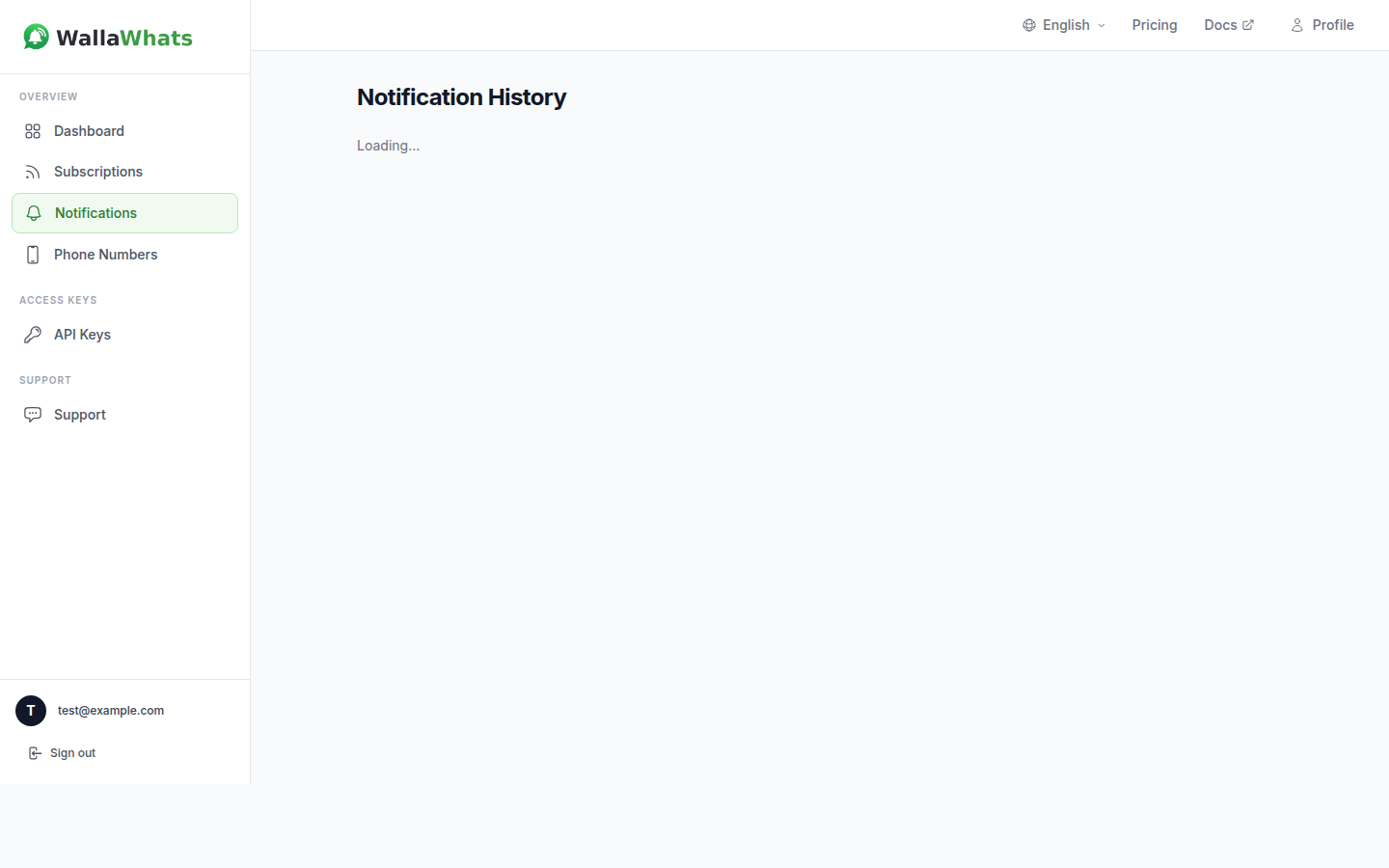
The Notifications page in your dashboard lists every alert with its current status, timestamp, destination channel, and the source X handle. You can scroll back through your account’s history and visually scan for patterns — a run of “failed” rows on one WhatsApp number, for instance, usually means that number needs re-verification.
Pulling History Through the API
Every plan includes API access, so you don’t have to rely on the dashboard view if you want to build your own monitoring or export history into another system. The endpoint is paginated by date range with a cursor for continuing through large result sets:
curl -H "x-api-key: your-api-key" \
  "https://api.wallawhats.com/notifications?from=1735689600000&to=1735776000000"
from and to are millisecond Unix timestamps bounding the window you want. If the result set is large, the response includes a lastKey cursor — pass it back on the next request to page forward:
curl -H "x-api-key: your-api-key" \
  "https://api.wallawhats.com/notifications?from=1735689600000&to=1735776000000&lastKey=eyJsYXN0RXZhbHVhdGVkS2V5Ijp7fX0="
Each row in the response includes the channel, the status, and the associated timestamps, so you can build your own dashboards, feed status data into an internal alerting tool, or run a scheduled job that flags any spike in failed deliveries. Developers building custom integrations on subscriptions and channels alongside this endpoint should check our full X alerts API guide for the complete route reference.
Note that there’s no server-side ?status= filter — you pull the full window and filter client-side. For most use cases (daily or weekly reconciliation jobs) this is a non-issue since the response is already scoped by time range.
Filtering and Reading the Dashboard View
On the dashboard, each row shows a status pill — a quick visual cue for queued, sent, delivered, read, or failed — next to the source handle and a timestamp. When you’re scanning a busy account with dozens of alerts, the pills make it fast to spot the outliers: a cluster of failed pills is worth investigating immediately, while an isolated failed row next to dozens of delivered ones is usually just a one-off (an expired number you haven’t gotten around to re-verifying, for example).
If you’re monitoring multiple channels, remember each post can appear twice — once per channel — so don’t be surprised to see “delivered” on the email row and “failed” on the WhatsApp row for what looks like the same alert. That’s the system correctly reporting two independent delivery attempts, not a duplicate.
Read Receipts Need the Right Expectations
It’s worth repeating because it trips people up: “read” status is a WhatsApp feature, not something WALLAWHATS controls. If you or your recipient has disabled read receipts in WhatsApp’s privacy settings, WALLAWHATS will never see a read event, and the row stays at “delivered” indefinitely. This is the same behavior you’d see in any WhatsApp conversation — the blue double-check simply won’t appear if receipts are off on either side. If you’re deciding between personal and Business WhatsApp numbers for receiving alerts, our personal vs Business number comparison covers how read receipts and delivery behavior differ slightly between the two account types.
Using History for Different Roles
Journalists and comms teams use the history as an after-the-fact audit trail — confirming an alert about a competitor’s statement or a source’s post actually reached the on-call phone before a story went out, which matters when reconstructing a timeline after a fast-moving news cycle.
Executives and founders mostly check history reactively, when something feels like it slipped through — a competitor announcement they heard about secondhand instead of via alert. The history quickly separates “the alert failed” from “the alert arrived and got missed.”
Traders watching high-velocity crypto or market accounts care about the delivered timestamp specifically, since that’s the closest proxy to when the information was actionable on their end, independent of whether they opened WhatsApp immediately.
Developers building on top of the API care less about the dashboard pills and more about programmatically catching failed deliveries — polling the endpoint on a schedule and alerting internally (via their own tooling) if failure rates cross a threshold, which is a common pattern for teams running WALLAWHATS as one input into a larger monitoring stack.
What the History Doesn’t Do
To be clear about the boundaries: the notification history tracks delivery status of the alerts WallaWhats sends you — it’s not a permanent archive of the underlying posts themselves. Tweet snapshots (the rendered images attached to email alerts) are retained for 30 days in the gallery, and notification metadata is kept longer for troubleshooting purposes, but this is a delivery status record, not an immutable record of X activity. If you need the original post content beyond that window, the “View on X” link in each alert points back to the source on x.com.
A Simple Weekly Reconciliation Habit
You don’t need a dashboard or a cron job to get real value out of the notification history — a five-minute weekly check is usually enough. Pick one day, pull the last seven days of history, and look for two things: any unexplained cluster of “failed” rows, and any monitored account where you expected activity but see no rows at all in the window.
For teams already comfortable with the API, this reconciliation is easy to script:
# Pull the last 7 days and count statuses locally
curl -s -H "x-api-key: your-api-key" \
  "https://api.wallawhats.com/notifications?from=$(($(date +%s%N)/1000000 - 604800000))&to=$(date +%s%N | cut -b1-13)" \
  | jq '[.items[].status] | group_by(.) | map({status: .[0], count: length})'
Running something like this weekly turns “I assume it’s working” into “I confirmed it’s working,” which is the whole point of keeping a status trail in the first place. If the counts look off — a sudden jump in failed rows, or a channel that’s gone quiet — that’s your cue to check the Channels page for an expired verification before it costs you a missed alert during something time-sensitive.
Common Failure Patterns and What They Mean
A handful of failure patterns show up repeatedly across accounts, and recognizing them saves troubleshooting time:
A single channel fails while others succeed. As covered above, this almost always means that specific destination — a phone number or email address — has a problem: it was never fully verified, the WhatsApp number was changed without re-verifying, or the email started bouncing. The fix is re-adding and re-verifying that channel from the Channels page.
Failures cluster around a specific time window. This usually points to a transient issue on the provider side (WhatsApp Business API or SES), not a WALLAWHATS-side problem. These tend to be self-resolving; if they persist beyond a day, that’s worth flagging to support.
No rows at all for an account you expected activity from. Before assuming something is broken, check whether you’re near your plan’s velocity cap — if so, the activity may be sitting in a digest that hasn’t flushed yet, or it already arrived as a digest message rather than individual alerts. The digest mechanics are covered in detail in our velocity caps guide.
Read never appears, even after days. This is expected behavior, not a bug, whenever the recipient (which might be you) has WhatsApp read receipts turned off. Delivered is the meaningful confirmation in that case — don’t wait on read status as a signal that something failed.
Getting Started
If you’re not already checking your notification history periodically, it’s worth building the habit — especially before you rely on WALLAWHATS for anything time-sensitive. A quick scan for failed rows, a spot-check that delivered timestamps land within a reasonable window of the source post, and you’ll have real confidence in the pipeline instead of just hoping it’s working.
Never miss an important post again. Create a free account — 1 WhatsApp number, real-time alerts, no credit card required.
About the author
Nacho Coll
Founder & Engineer at WallaWhats
Nacho founded WallaWhats so you get the alerts that matter without depending on X's algorithm to surface them — pick the accounts you care about and get a WhatsApp for every post the moment it goes live, in order, nothing throttled or buried. Writes about real-time notification systems, social-signal monitoring, and serverless delivery pipelines from the operator side of the wire.