Delete the X App, Keep the Signal: Real-Time Alerts on WhatsApp
You want the important posts, not the endless scroll. Follow the handful of X accounts you actually need on WhatsApp — then delete the app.
 by Nacho Coll
Nacho founded WallaWhats so you get the alerts that matter without depending on X's algorithm to surface them — pick the accounts you care about and get a WhatsApp for every post the moment it goes live, in order, nothing throttled or buried.
Most people who think about deleting the X app aren’t unhappy with X as a source of information. They’re unhappy with what opening it does to their next forty minutes. You go in to check one thing, such as a company announcement, a reporter’s update or a maintainer’s release note, and you come out having read forty other things, none of which you decided to read.
The usual advice is willpower: set a timer, move the icon to the last screen, log out after each session. It works for a week. The underlying problem is that you have two different needs bundled into one app. One is signal, the handful of posts from specific accounts that you’d be annoyed to miss. The other is browsing, an open-ended scroll through whatever the feed serves up. The app is built around the second one, and you only need the first.
This guide is about separating them. You choose the few accounts whose posts matter, get each new public post as a WhatsApp message, and then remove the app from your phone if you want to. You stop opening a feed to find out whether something happened, because the something finds you.
Why willpower keeps failing
A feed is designed to be open-ended. There is always one more post below the last one, and the content is ranked to hold your attention, not to answer a question you came with. That’s a reasonable design for a place people browse. It’s a poor match for the question “did this specific account post something?”, because answering it means opening the same place that’s built to keep you there.
That’s why the habit loop is so hard to break. The reason you open the app is legitimate: you really do want to know whether your must-follow accounts posted. The cost is that checking is not a one-second action. It’s the start of a session.
There are two ways to break the loop. You can remove the reason to check, or you can remove the app. The first is the more durable one. If a message arrives when something you care about happens, you no longer need to check “just in case”, and deleting the app stops being a sacrifice and becomes a tidy-up.
Pull versus push
The distinction that matters here is between pulling and pushing.
- Pull means you go and look. You open the app, scan the feed and decide whether anything is relevant. Every check costs attention, and most checks find nothing.
- Push means the relevant thing comes to you. Nothing happens until an account you chose posts, and then you get one message.
A feed is a pull system with a push system’s notification badge attached to it. A per-account alert is a pure push system: its entire output is “this account you picked just posted”. There is no “while you’re here” content and nothing below the message to scroll into.
Push has its own failure mode, which is too much of it. A noisy account can turn your phone into the thing you wanted to escape. We’ll get to how to prevent that, because it’s the part that decides whether this setup sticks.
Step 1: Decide who is on the list
Before you configure anything, write the list. This is the most important step, and it’s mostly subtractive.
Go through the accounts you follow and ask one question of each: if this account posted something important and I didn’t see it for six hours, would I mind? Be honest. If the answer is “I’d just see it eventually”, it’s browsing, and it doesn’t belong on the list. If the answer is “I’d be annoyed or it would cost me something”, it’s signal.
People usually end up with a list of roughly 3 to 15 accounts. They tend to fall into a few groups:
- Work-critical. A vendor’s status or announcements account, a regulator, a competitor’s product account, the maintainers of a library you depend on.
- Time-sensitive. A company you’re invested in, an event organizer, a transit or service-disruption account, a creator who announces limited releases.
- Personal priority. A friend or family member who posts rarely but meaningfully, a local organization, a small-business account you buy from.
Everything else, the long tail of interesting people, opinions and entertainment, stays where it is. Nothing about this setup requires you to unfollow anyone. It just stops treating all of it as equally urgent.
A note on what this works for: WallaWhats follows public accounts that you choose, and you choose them yourself. It’s built for keeping up with public posts from public accounts, such as news sources, companies, public figures in a professional capacity and creators. It isn’t a way to keep tabs on private individuals, and it doesn’t see protected accounts or direct messages.
Step 2: Set up WhatsApp delivery
The setup takes a few minutes.
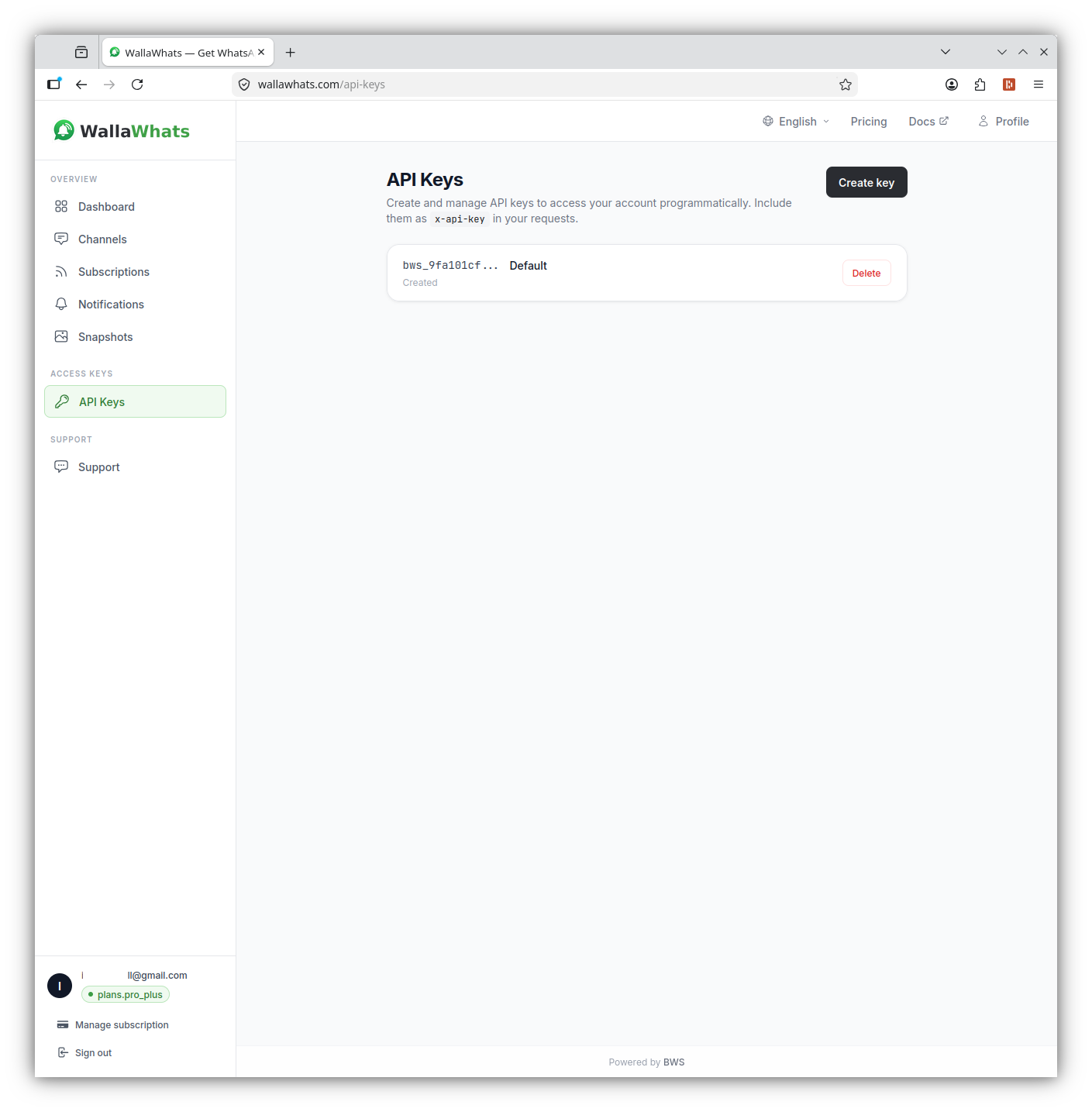
- Create a free account. Sign-in is passwordless: you get a six-digit one-time code on WhatsApp or by email and enter it. There’s no password to remember.
- Verify your WhatsApp number. Each destination, whether a phone number or an email address, verifies itself with its own one-time code before any alert can be delivered to it. That’s deliberate. Alerts only go to places the owner has confirmed.
- Add your accounts. In the dashboard, subscribe to each X handle on your list.
- Check the Channels page. WhatsApp is the default channel. Email is also available on every plan, and you can switch each channel on or off from the Channels page.
You can read more about the first-time flow in the getting started guide, and about why we chose one-time codes in passwordless sign-in for X alerts.
One behaviour is worth knowing now, because it affects how you design the setup: channels are toggled globally, not per account. Every alert from every subscription goes to all of your enabled and verified channels. You can’t say “this account to WhatsApp, that account to email”. So if you want a calmer setup, the decisions you make are which accounts are on the list and which channels are switched on, not per-account routing.
Step 3: Decide what the alert needs to do for you
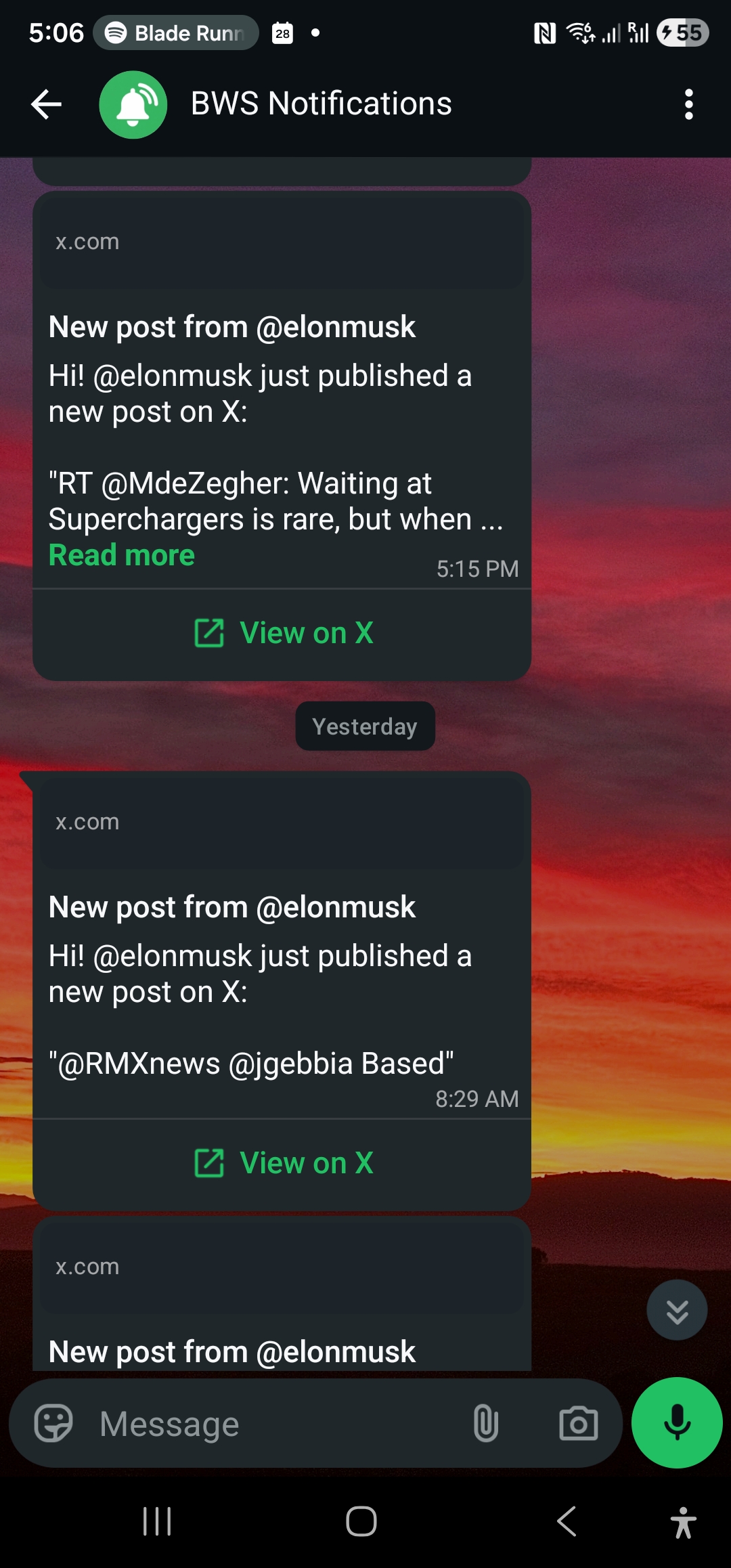
Once it’s running, an alert is a short message on WhatsApp with the account handle, the post text and a link back to the original post on x.com. A few practical points about that.
The link is the way back. If an alert is enough on its own, such as “the event moved to 7pm”, you read it and move on. If you want the replies, the thread or the quoted post, tap the link and the post opens on x.com. You’re still free to look at the context. You’re just doing it on purpose, for one post, rather than by opening a feed.
Text arrives as written. Alerts carry the post’s text as the account published it. We don’t rewrite or summarize it.
Delivery is quick, not guaranteed to the instant. Alerts typically arrive within seconds of a post becoming publicly visible, when available. Like any service built on top of a public platform’s data, there are edge cases, such as a post deleted before it can be delivered, or a brief outage, so treat it as a fast convenience and not as a legal guarantee that you’ll see everything. If something is truly critical, such as a trading decision or an on-call page, keep a second route as a backstop.
Email carries more. If you also enable email, the email alert includes a rendered image of the post. The WhatsApp message doesn’t. Snapshots are available on every plan, including Free, and the dashboard keeps a searchable gallery for 30 days. For a comparison of the two channels, see email versus WhatsApp alerts.
Step 4: Keep the volume low enough to trust
This is the step that decides whether you stay with the setup. If your WhatsApp fills up with alerts, you’ll either mute the chat, which defeats the purpose, or drift back to the app. Three mechanisms keep the volume in check, and one of them is you.
Your list is the main control
The strongest lever is the list from Step 1. Ten accounts that each post once or twice a day produce a manageable stream. Ten accounts that each post thirty times a day don’t. When you’re deciding whether to add someone, think about how often they post, not only how much you like them. A prolific account that you only care about occasionally is a poor candidate.
Plan limits act as a ceiling
Each plan has a monthly alert allowance and a cap on how many accounts you can monitor:
| Plan | Price | Monthly alerts | X accounts |
|---|---|---|---|
| Free | $0 | 3 | 2 |
| Pro | $5 | 50 | 3 |
| Pro+ | $12 | 250 | 10 |
| Business | $29 | 1,000 | 20 |
| Enterprise | $99 | 3,000 | 50 |
These are limits, and they can double as discipline. The Free plan is a good way to test the idea on one or two accounts that post rarely, but 3 alerts a month is a trial, not a way of life. If you’re serious about replacing the app for a list of around ten accounts, Pro+ is the plan sized for that. Choose a plan based on the posting rate of the accounts you picked.
Velocity caps absorb bursts
Even a well-chosen list has bad days: a product launch, a breaking story, an account that suddenly posts a long run of updates. Each plan has a per-user velocity cap on a rolling 60-minute window: 2 alerts an hour on Free, 5 on Pro, 15 on Pro+, 30 on Business and 100 on Enterprise.
When the cap is exceeded, the extra posts aren’t thrown away and they don’t each buzz your phone. They’re buffered and delivered as a digest, grouped by account, on a 15-minute cycle. The practical effect is that a burst turns into one tidy summary message per account instead of a stream of notifications. The mechanics are covered in velocity caps and alert storms.
That means the quiet-phone property holds even when the accounts you follow don’t behave.
Step 5: Use WhatsApp’s own controls for the rest
WhatsApp already has tools for managing attention, and they work on this chat like any other.
- Give the alerts their own place. A dedicated chat for the alerts keeps them separate from conversations with people. How you set that up depends on your WhatsApp account type, and our post on business versus personal WhatsApp numbers covers the trade-offs.
- Use your phone’s focus modes. If you want no notifications overnight or during deep work, your phone’s Do Not Disturb or Focus settings handle that. Alerts still arrive and wait for you to look.
- Mute selectively. WhatsApp lets you mute a chat for a period of time. Muting for the weekend is a perfectly reasonable use.
We don’t currently offer scheduled quiet hours inside WallaWhats itself, so for time-based silence, use the controls above. Your phone is better placed to know when you’re asleep than we are.
Step 6: Actually delete the app
Once the alerts have been running for a few days and you’ve confirmed that the accounts you care about show up, you can decide what “delete” means for you. There are three levels.
- Remove it from your phone only. This is the highest-impact, lowest-regret option. The phone is where the scrolling happens most, and your account, followers and history are all untouched. You can still open x.com on a computer when you want to browse deliberately.
- Remove it from your phone and sign out of the browser. A little more friction. Reaching the feed now takes a deliberate login.
- Leave the app installed but off your home screen. Not deletion, but for some people it’s a realistic compromise.
For most people the first option is the right one. Some practical notes:
- Your X account stays exactly as it is. Removing the app doesn’t delete your account or change who you follow. WallaWhats reads public posts, so it works whether or not you have the app installed.
- WallaWhats works alongside X, not as a replacement for it. You’ll still need x.com for anything beyond reading an alert, such as replying, posting or reading a thread. The aim isn’t to leave the platform. It’s to stop entering it by default.
- Keep the list in one place. Your subscriptions live in the WallaWhats dashboard. You can add or remove accounts at any time, so if you realize you’re missing someone, add them without reinstalling anything.
If you’re not ready to delete, try this instead: keep the app, but make a rule that you only open it when an alert sends you there. That alone removes most of the unprompted checking.
For people who like to script it
If you’d prefer to manage your list from a terminal, or keep it in a file, every plan includes API access with at least one API key. Authentication uses an x-api-key header.
Add an account to your list:
curl -X POST https://api.wallawhats.com/subscriptions \
  -H "x-api-key: <key>" \
  -H "Content-Type: application/json" \
  -d '{"xUsername": "nasa"}'
See what’s currently on it:
curl https://api.wallawhats.com/subscriptions \
  -H "x-api-key: <key>"
Remove one that turned out to be noisy:
curl -X DELETE https://api.wallawhats.com/subscriptions/nasa \
  -H "x-api-key: <key>"
Note that the request body takes the handle without the @, and the delete route uses the handle in the path. To review what was delivered over a time range, call GET /notifications with from and to in milliseconds; results are paginated with a lastKey cursor. The full list of routes is in the API reference, and there’s a longer walkthrough in the X alerts API guide.
What this will and won’t do
It’s worth being clear about the limits, so you can decide with accurate expectations.
It will tell you quickly when accounts you’ve chosen post publicly, in a place you already look at. It will cut most of the habitual checking, and it will keep bursts manageable.
It won’t replace discovery. Part of what a feed does is show you things you didn’t know to look for, and an alert list by definition only covers what you’ve already decided to follow. If you value that serendipity, schedule it: a deliberate browsing session on a computer once a day or a few times a week. The point isn’t to never browse. It’s to browse when you choose to, not as a side effect of checking.
It won’t be a perfect record of everything an account posts. Delivery is near real time and works from public posts, and some edge cases are inevitable. Don’t use it as your only line of defense for anything where a miss is costly.
It also isn’t a way to watch private people. Pick public accounts that post publicly, and for reasons that you could comfortably explain to the account’s owner: the news you rely on, the companies you work with, the creators you support.
Never miss an important post again. Create a free account — 1 WhatsApp number, real-time alerts, no credit card required.
About the author
Nacho Coll
Founder & Engineer at WallaWhats
Nacho founded WallaWhats so you get the alerts that matter without depending on X's algorithm to surface them — pick the accounts you care about and get a WhatsApp for every post the moment it goes live, in order, nothing throttled or buried. Writes about real-time notification systems, social-signal monitoring, and serverless delivery pipelines from the operator side of the wire.